Platform overview, editable AI video, long-form repurposing.
30-DAY EDUCATION CAMPAIGN
Teach the value.
Show the workflow.
Publish three times per week. Each asset leads with a useful idea, demonstrates one convenient workflow and ends with a low-pressure invitation to explore.
STATIC ASSETS / BENEFIT-LED
Start with why it matters.
STATIC ASSETS / HOW TO USE IT
Saveable step-by-step posts.
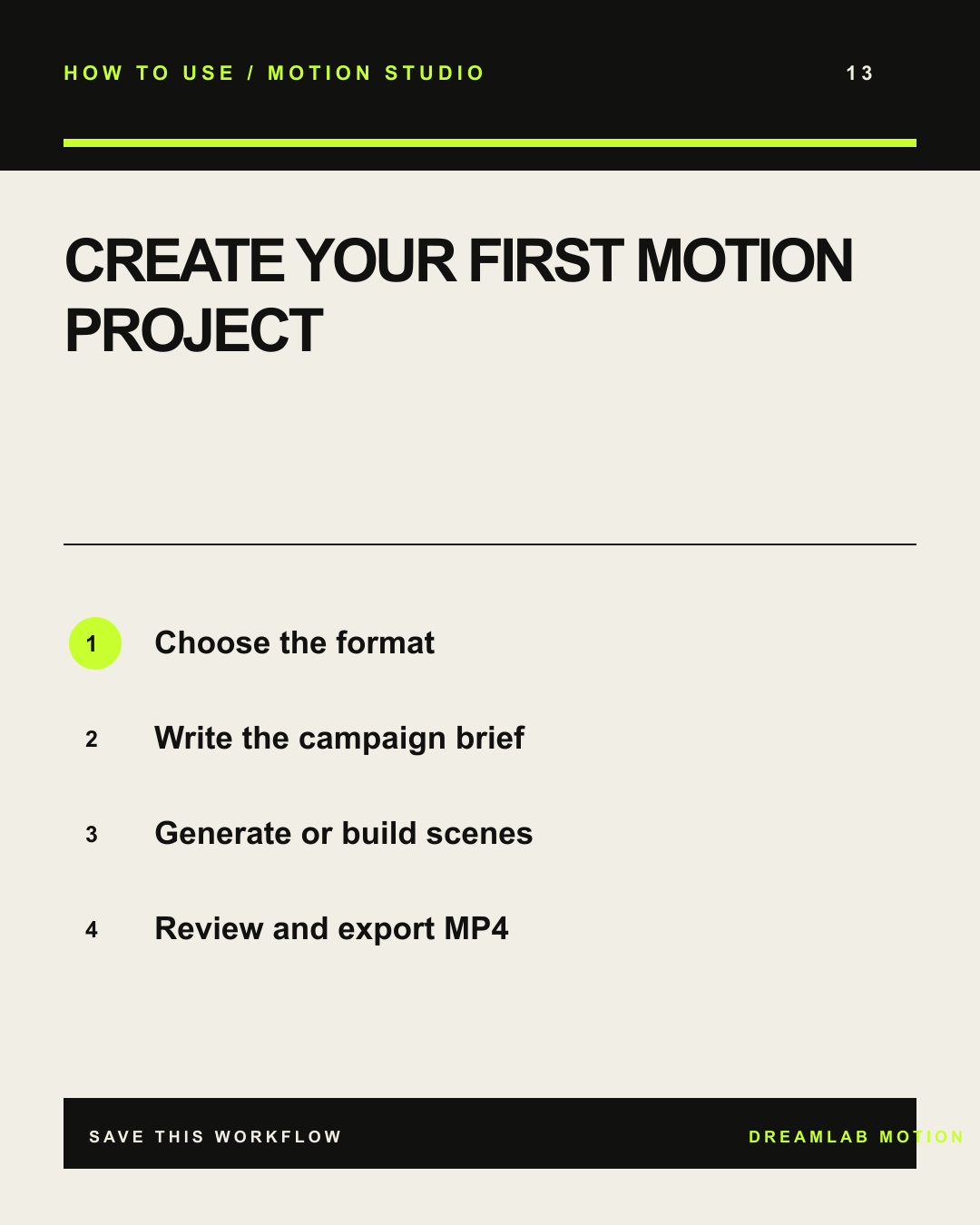
13 / MOTION STUDIO
CREATE YOUR FIRST MOTION PROJECT
- Choose the format
- Write the campaign brief
- Generate or build scenes
- Review and export MP4
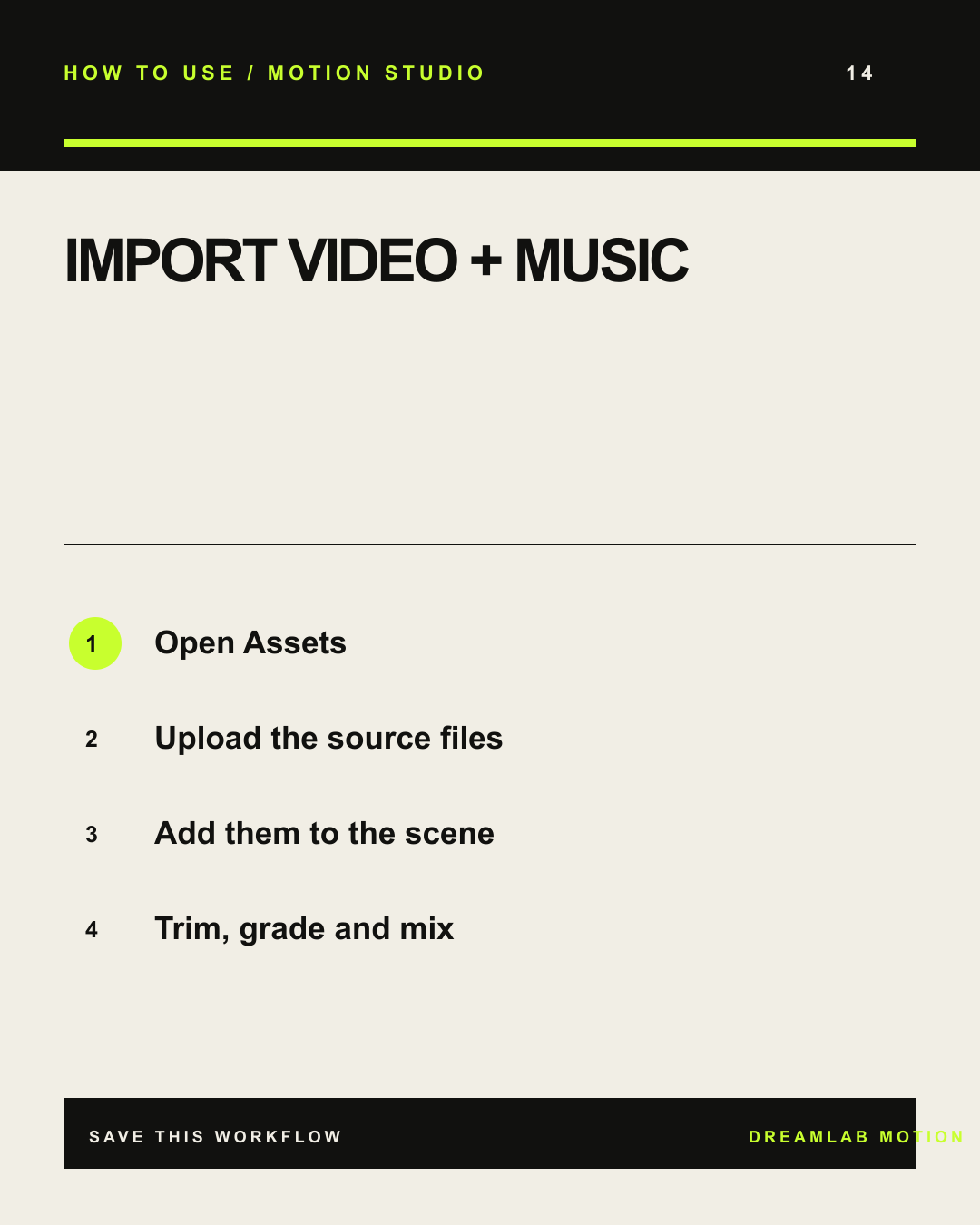
14 / MOTION STUDIO
IMPORT VIDEO + MUSIC
- Open Assets
- Upload the source files
- Add them to the scene
- Trim, grade and mix
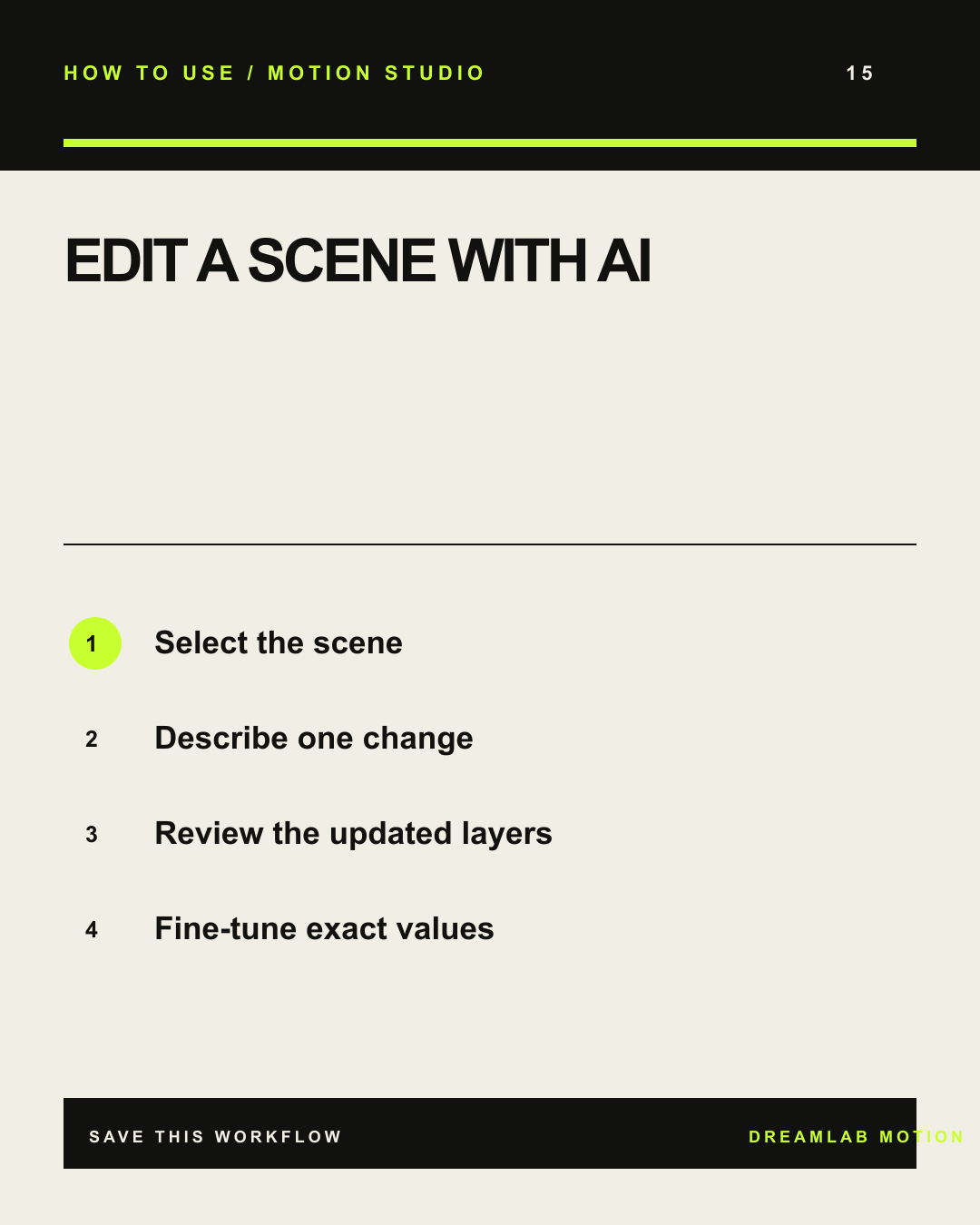
15 / MOTION STUDIO
EDIT A SCENE WITH AI
- Select the scene
- Describe one change
- Review the updated layers
- Fine-tune exact values
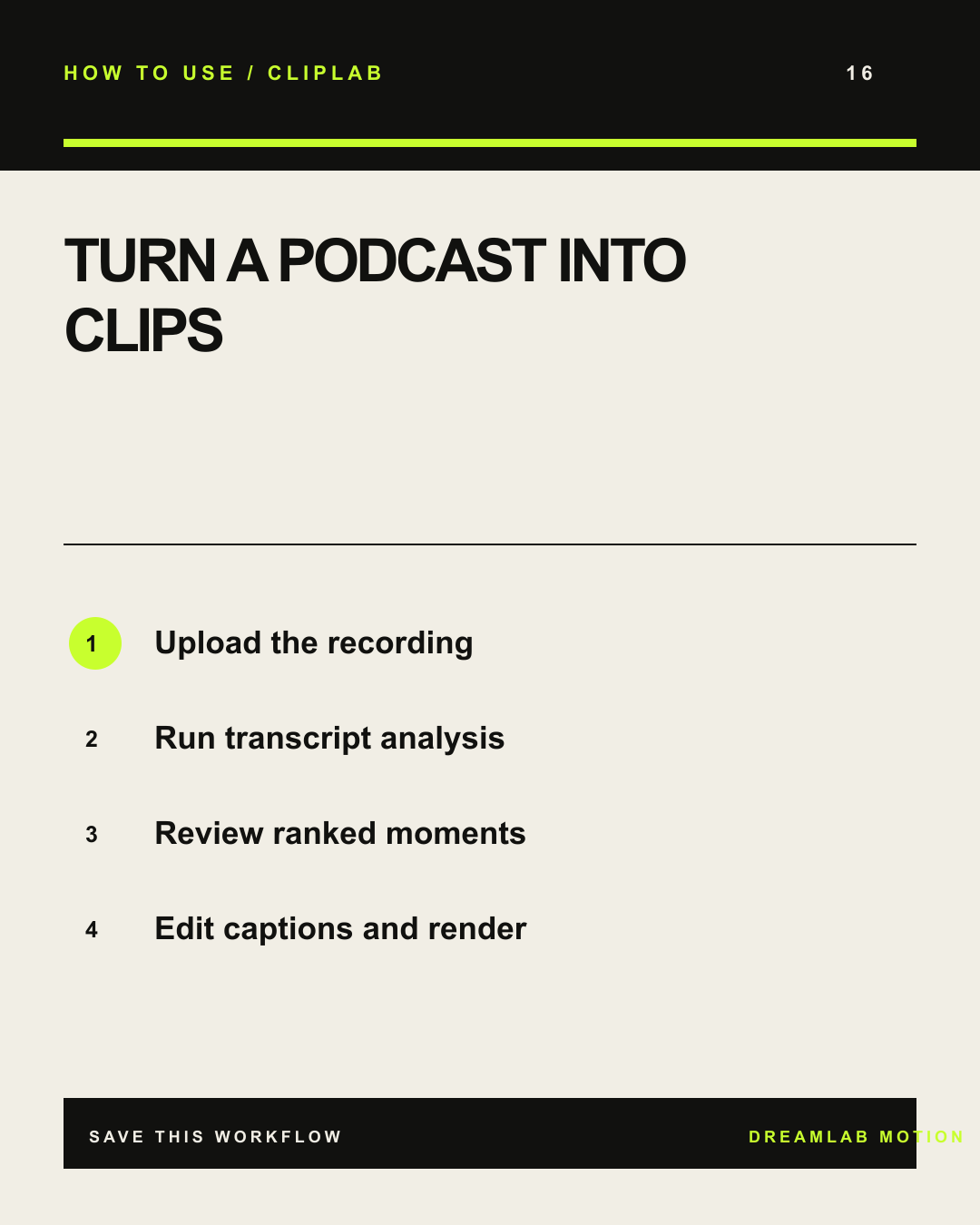
16 / CLIPLAB
TURN A PODCAST INTO CLIPS
- Upload the recording
- Run transcript analysis
- Review ranked moments
- Edit captions and render
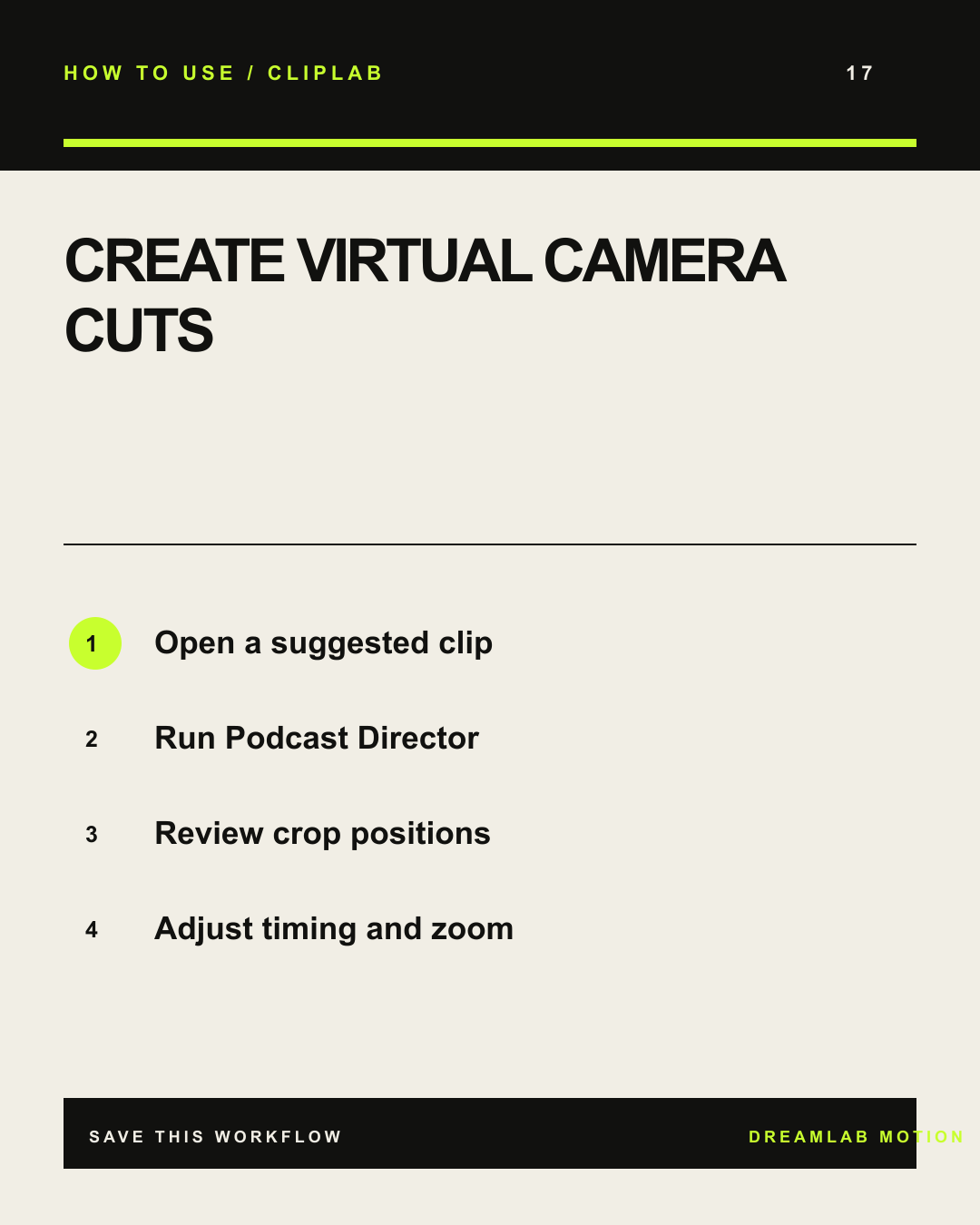
17 / CLIPLAB
CREATE VIRTUAL CAMERA CUTS
- Open a suggested clip
- Run Podcast Director
- Review crop positions
- Adjust timing and zoom
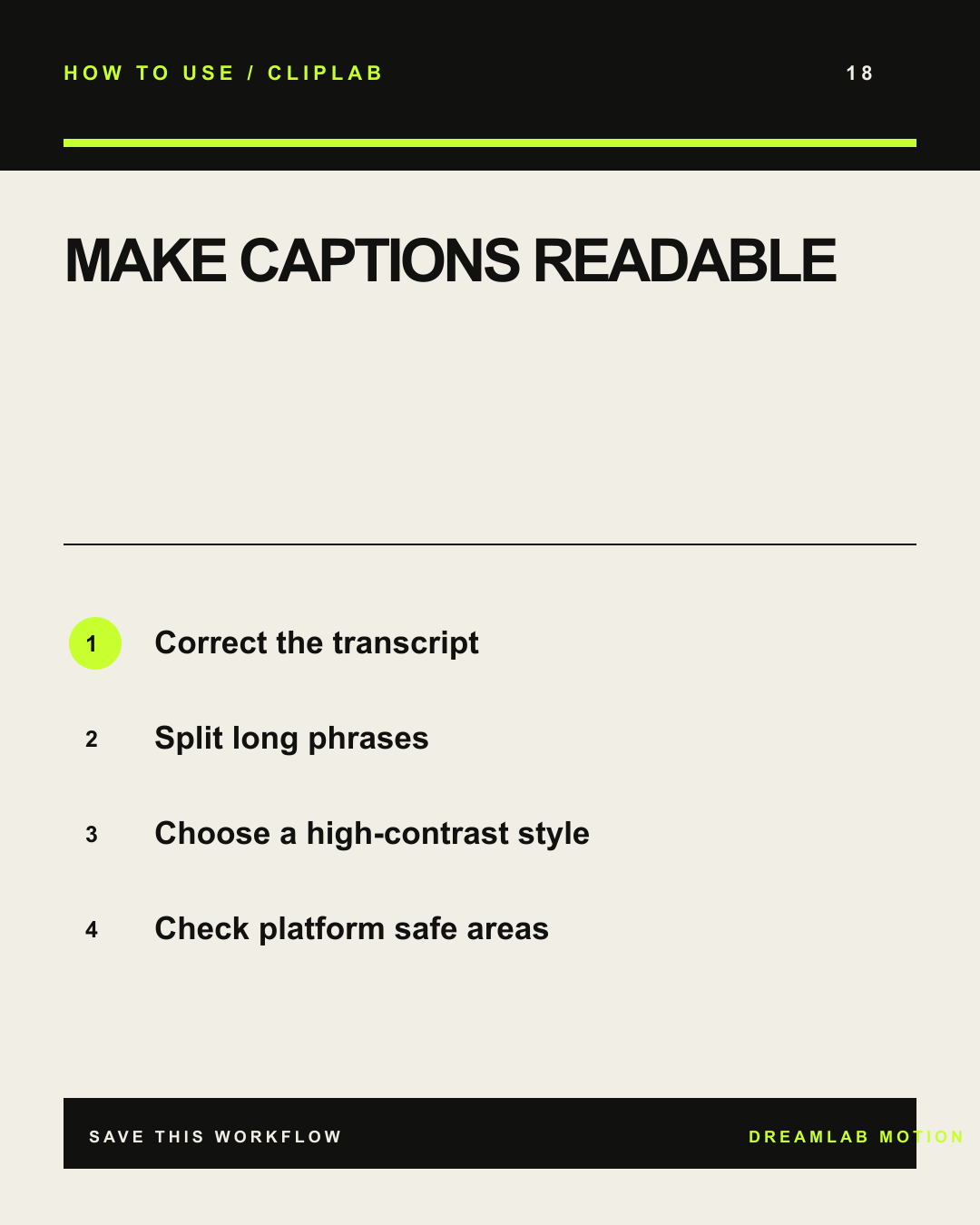
18 / CLIPLAB
MAKE CAPTIONS READABLE
- Correct the transcript
- Split long phrases
- Choose a high-contrast style
- Check platform safe areas
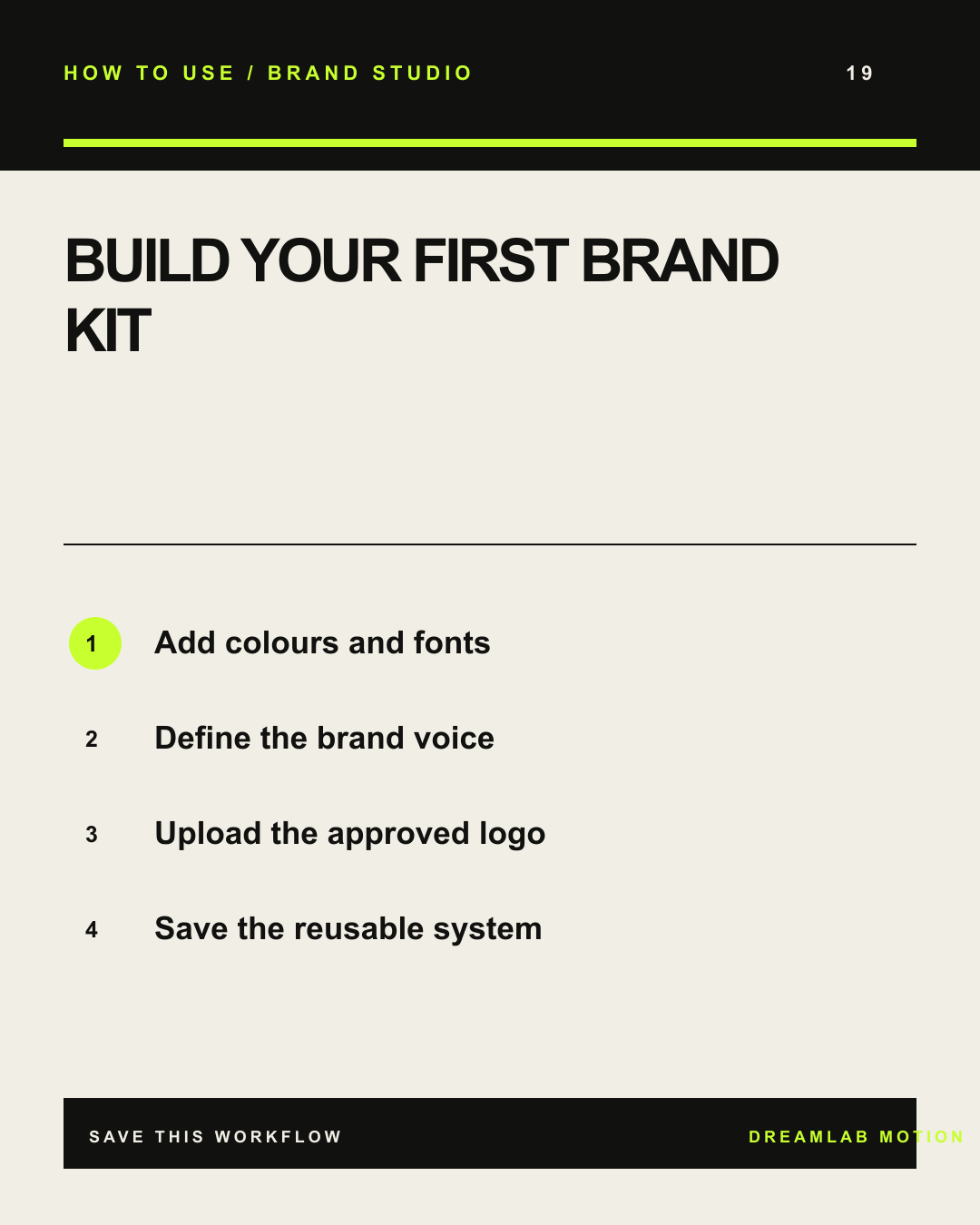
19 / BRAND STUDIO
BUILD YOUR FIRST BRAND KIT
- Add colours and fonts
- Define the brand voice
- Upload the approved logo
- Save the reusable system
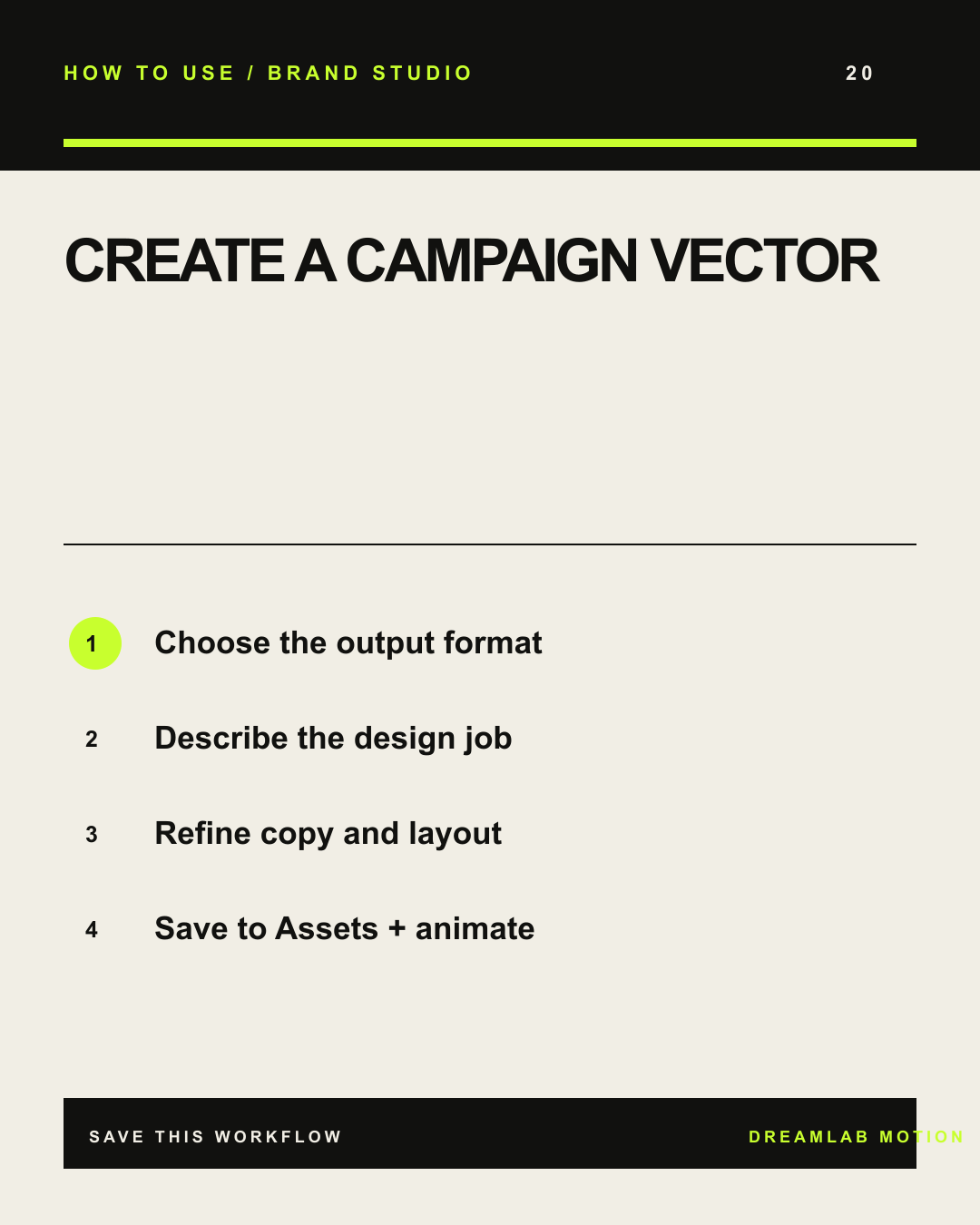
20 / BRAND STUDIO
CREATE A CAMPAIGN VECTOR
- Choose the output format
- Describe the design job
- Refine copy and layout
- Save to Assets + animate
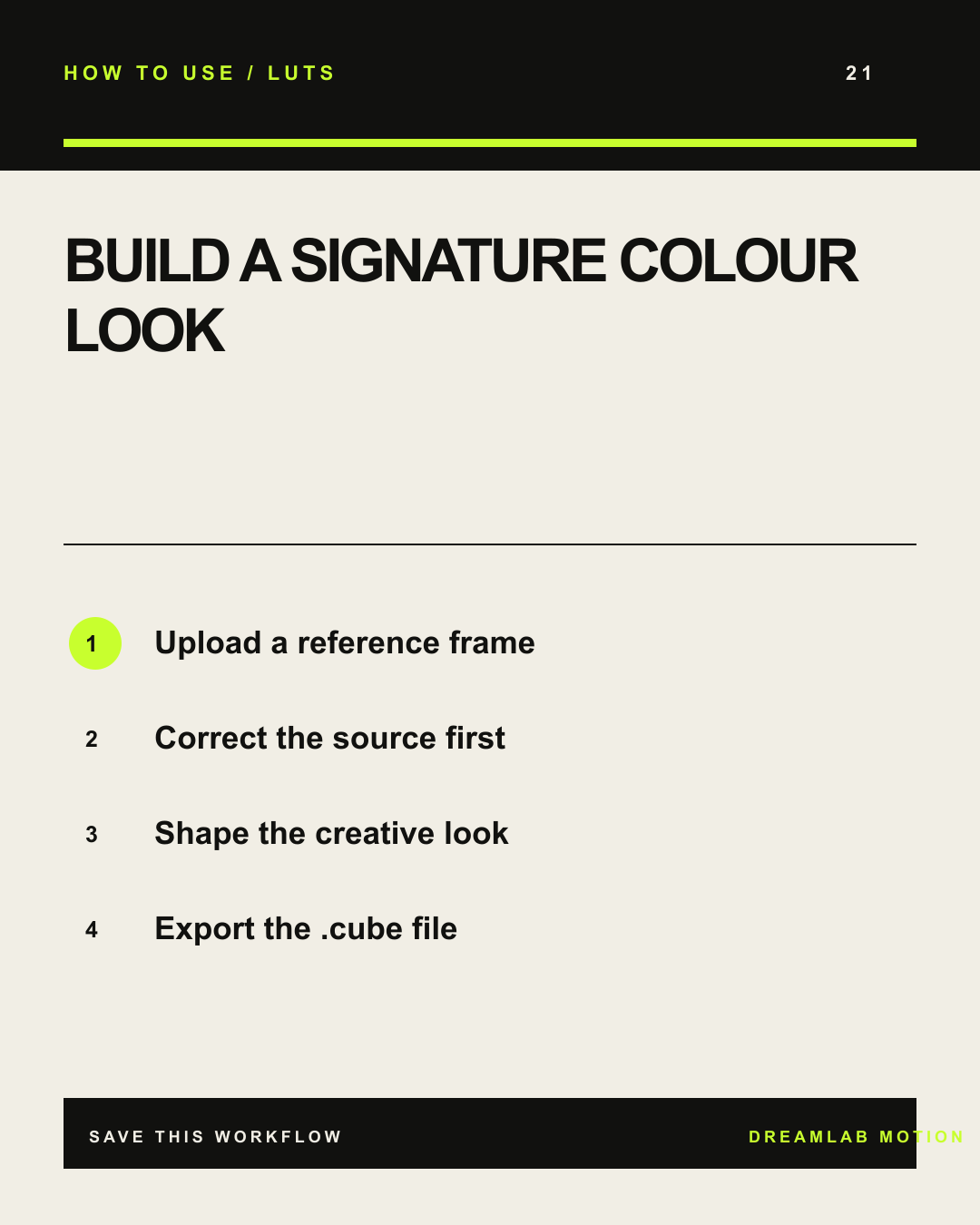
21 / LUTS
BUILD A SIGNATURE COLOUR LOOK
- Upload a reference frame
- Correct the source first
- Shape the creative look
- Export the .cube file
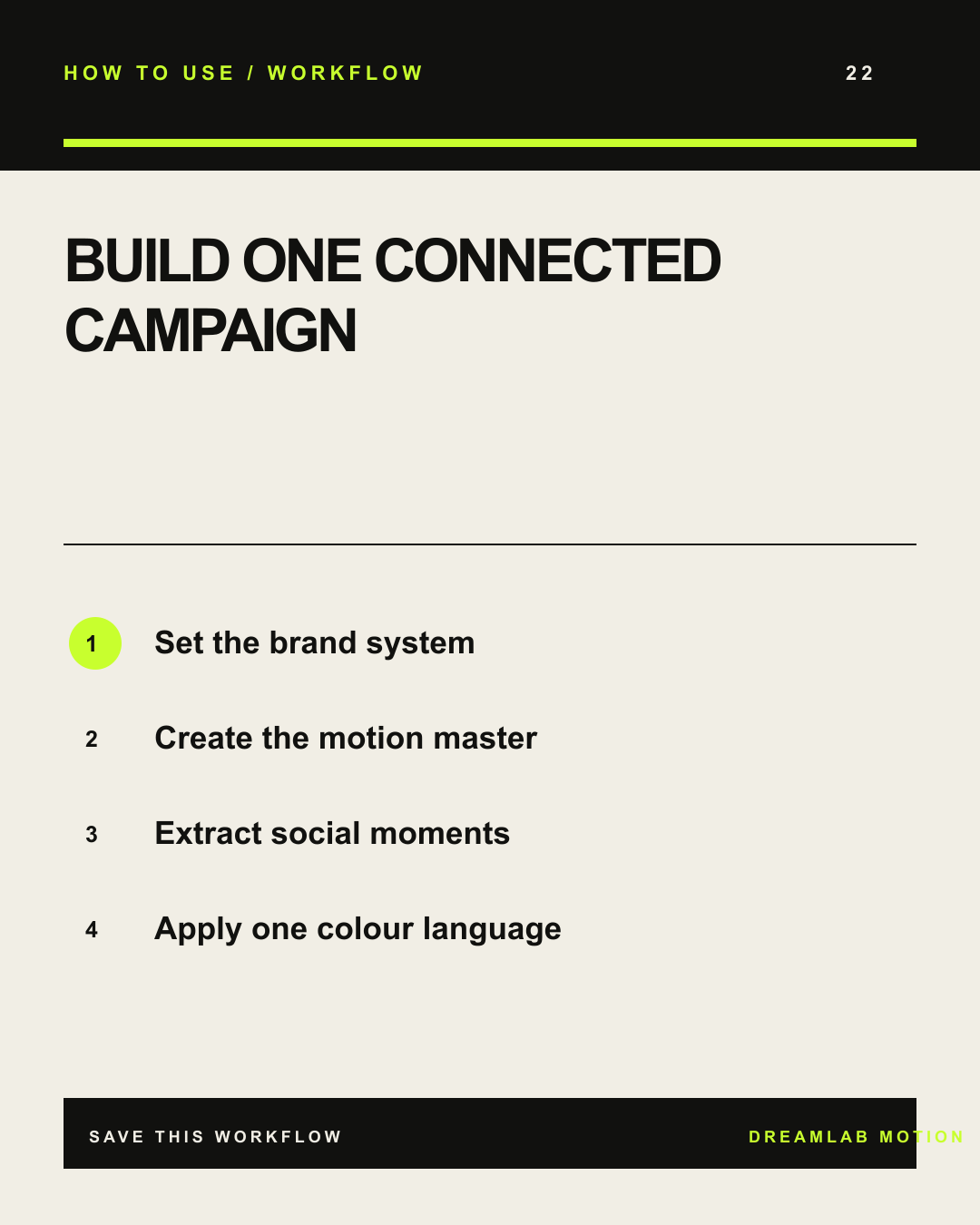
22 / WORKFLOW
BUILD ONE CONNECTED CAMPAIGN
- Set the brand system
- Create the motion master
- Extract social moments
- Apply one colour language
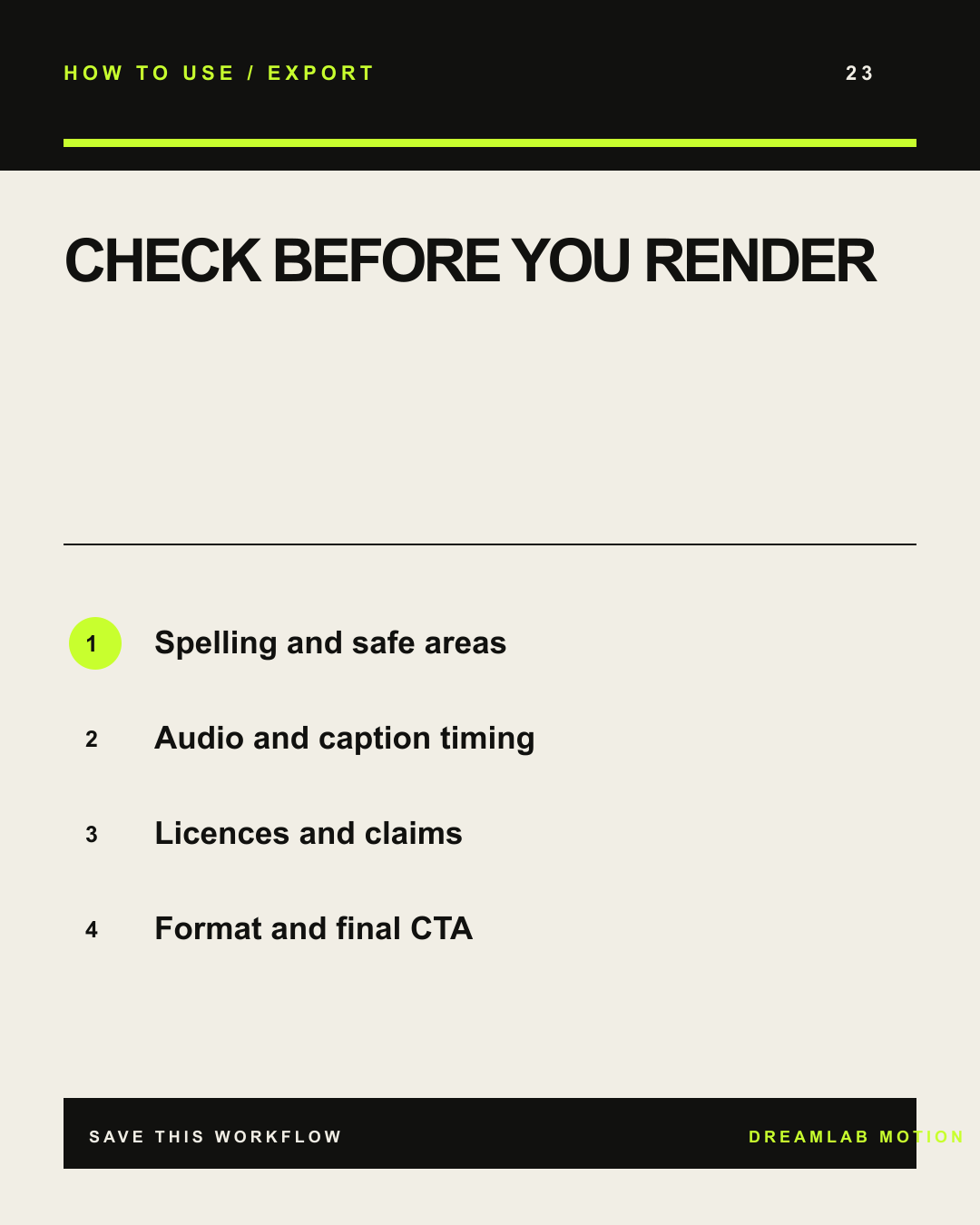
23 / EXPORT
CHECK BEFORE YOU RENDER
- Spelling and safe areas
- Audio and caption timing
- Licences and claims
- Format and final CTA
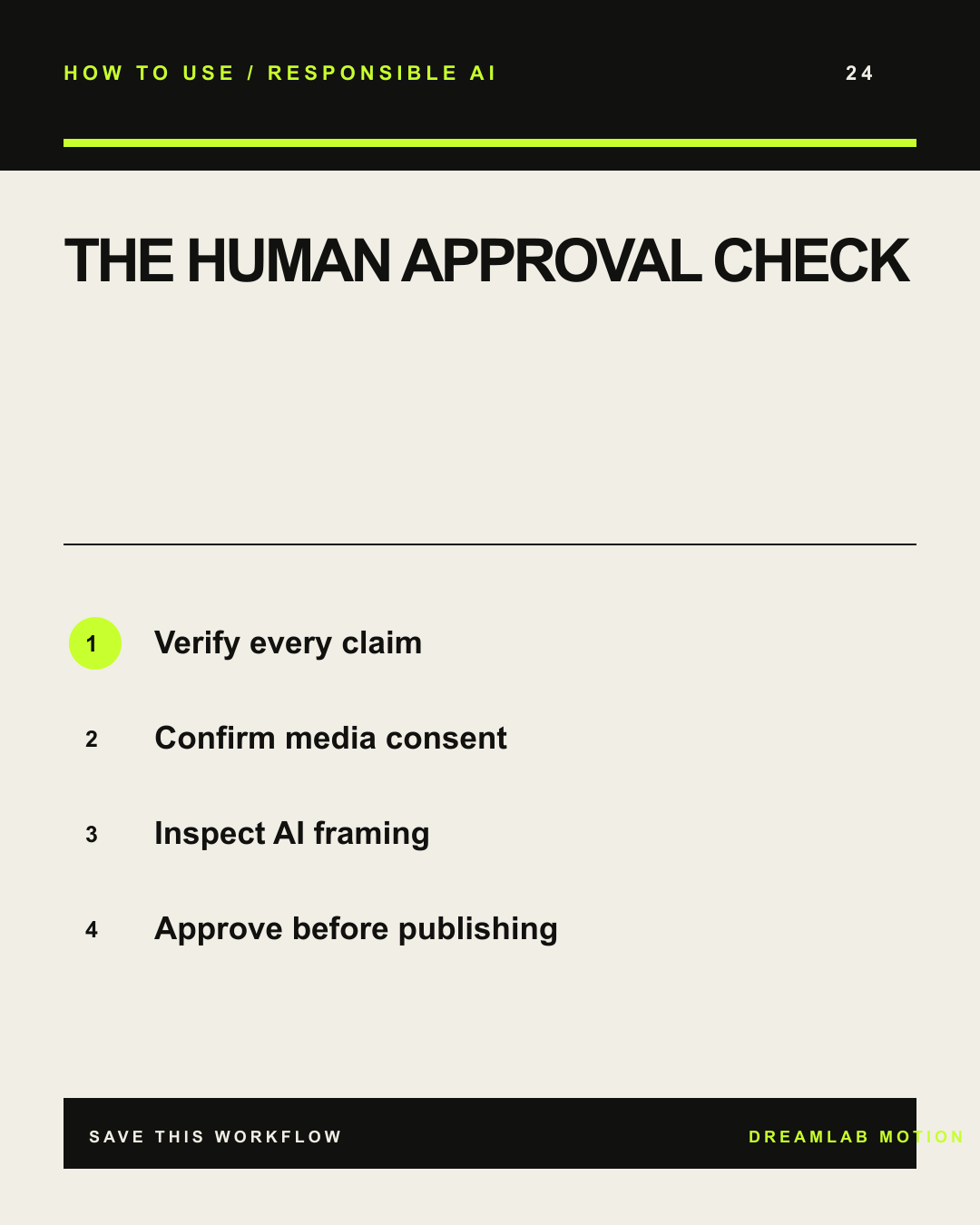
24 / RESPONSIBLE AI
THE HUMAN APPROVAL CHECK
- Verify every claim
- Confirm media consent
- Inspect AI framing
- Approve before publishing
REELS / 9:16 / 14 SECONDS
Finished vertical education videos.
MOTION STUDIO
Create your first motion project
A fast AI workflow should still give you editable scenes. Here is the five-step path from blank project to finished MP4 in Dreamlab Motion.
- CHOOSE 9:16, 1:1 OR 16:9
- ADD THE AUDIENCE, OFFER + CTA
- BUILD EDITABLE SCENES
- IMPORT VIDEO + MUSIC
- REVIEW → RENDER A REAL MP4
CLIPLAB
Turn a podcast into social clips
ClipLab reduces review time, then keeps the final editorial decision with you. Scores are triage—not a guarantee of virality.
- UPLOAD THE LONG RECORDING
- TRANSCRIBE THE REAL AUDIO
- REVIEW RANKED MOMENTS
- REFRAME + EDIT CAPTIONS
- RENDER THE CHOSEN CLIP
BRAND STUDIO
Move a brand design into motion
Build the visual system once, then move campaign artwork directly into the motion workflow as scalable layers.
- ADD COLOURS, FONTS + VOICE
- BRIEF THE CAMPAIGN DESIGN
- REFINE THE VECTOR LAYOUT
- SAVE DIRECTLY TO ASSETS
- ANIMATE IT IN MOTION STUDIO
LUTS
Build a signature colour look
Correct first, stylise second. Build a restrained look that can travel from Dreamlab to Premiere, After Effects or Resolve.
- START WITH A BALANCED FRAME
- SHAPE CONTRAST + COLOUR
- CHECK SKIN + NEUTRALS
- TEST MORE THAN ONE SHOT
- EXPORT A PORTABLE .CUBE
DREAMLAB MOTION
One connected campaign workflow
The real convenience is not another AI button. It is keeping brand context and creative assets connected from brief to export.
- DEFINE THE BRAND
- CREATE THE MOTION MASTER
- TURN LONG-FORM INTO CLIPS
- APPLY THE COLOUR LANGUAGE
- PUBLISH A COHERENT CAMPAIGN
RESPONSIBLE AI
AI directs. You approve.
Use AI to remove repetitive work. Keep accountability, representation, claims and publishing approval with people.
- VERIFY THE CLAIMS
- CORRECT NAMES + CAPTIONS
- CHECK FRAMING + CONTEXT
- CONFIRM RIGHTS + CONSENT
- A HUMAN APPROVES THE EXPORT